Shopify Product Variant Images: How to Show Each Variant Visually Without Fragmenting the Gallery
Managing shopify product variant images is rarely a technology problem. It is a curation problem. The default behavior of most Shopify themes is to dump every image you upload into a single, massive carousel. If you sell a jacket in four colors and have five angles per color, your customer now has twenty images to scroll through on mobile just to see the back of the blue version. That does not help them buy. A high-converting product page isolates variant imagery so the buyer only sees the angles for the exact color they selected.
Definition
Product variant images are specific visual assets mapped to individual product options, like color or size, within an ecommerce store. Instead of showing a generic product, these images update dynamically when a customer selects a specific swatch to display the exact physical item they are buying. This targeted visual confirmation helps shoppers evaluate details without hunting through an unfiltered media carousel.
Throwing every single colour variant product images into the main gallery without sorting them is lazy merchandising. It creates friction precisely when the buyer is trying to evaluate their choice. They click the olive green swatch, but the main image gallery still displays the navy blue model. Then they have to manually swipe through a dozen photos hoping to find a close-up of the green fabric. Most buyers will simply leave.
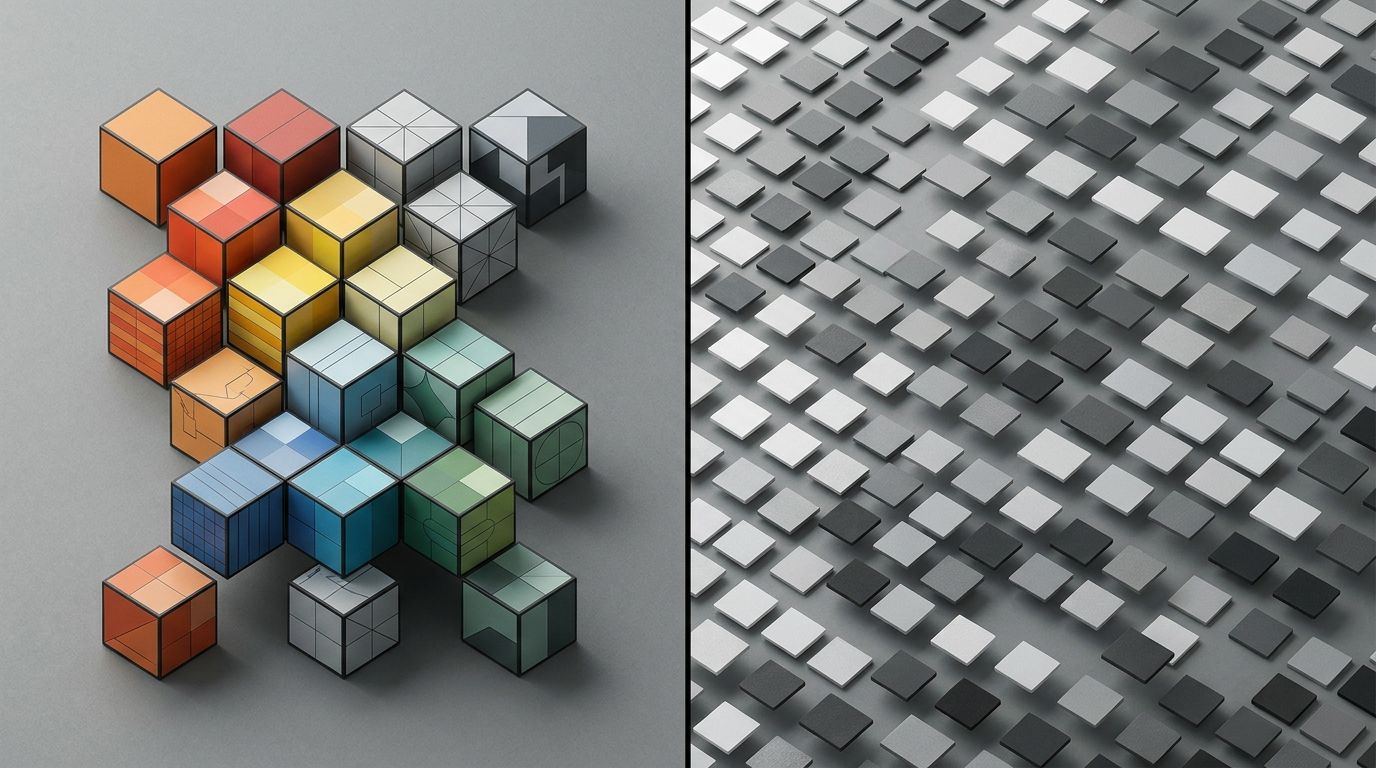
A properly grouped Shopify variant gallery isolates images by color, preventing mobile swipe fatigue.
Automating your visual assets through AI saves weeks of production time, but you still need a meticulous naming convention in your backend to map those images to the right variants smoothly. If your files are disorganized before they hit your store, the customer experience will reflect that chaos.
The Variant Fragmentation Problem
Think about how people shop on their phones. Thumb fatigue is real. If a shopper has to hunt for visual confirmation of the product they are about to spend money on, their purchase intent drops with every swipe. Visual confirmation is the core driver of ecommerce trust.
(Worth noting: some premium custom Shopify themes handle variant grouping automatically right out of the box, but the vast majority of standard marketplace themes require you to either manually assign a single image in the dashboard or use a third-party app to filter the entire gallery).
The issue begins in the studio. When brands shoot product variants ecommerce photography, they usually focus on the hero colorway. They capture the flat lay, the model shot, the macro detail of the stitching, and the lifestyle image in the hero color. For the secondary colors, they often just shoot one flat lay and call it a day.
This creates a massive visual imbalance on your product page. When a customer clicks the hero color, they get a rich, multi-angle experience. When they click the secondary color, they get a single, uninspiring image. Figuring out how many product images convert is an exercise in consistency. If you need five images to sell the black version, you need five images to sell the red version.
Why generic galleries kill conversion
A single, unified gallery forces the customer to do the mental heavy lifting. If the second image in your carousel is a close-up of a brass zipper on the black bag, the customer has to guess if the brown bag also features brass hardware. You are asking them to assume details instead of showing them.
Every assumption a customer makes is a reason for them to delay the purchase. To show product variants visually and effectively, the media gallery must act as a dynamic element. It must respond instantly to the user's swatch selection.
Grouping vs. Flattening Your Variant Image Strategy
There are two ways to handle shopify variant photography. You can flatten the gallery, or you can group the gallery.
| Gallery Strategy | Visual Behavior | Impact on Conversion |
|---|---|---|
| Flattened Gallery | Displays all images for every colorway simultaneously in a single massive carousel. | Causes mobile swipe fatigue and forces the buyer to guess which details apply to their selection. |
| Grouped Gallery | Filters the main media carousel to instantly match the active color swatch. | Increases buyer confidence by providing immediate, relevant visual confirmation of their exact choice. |
Flattening is what happens when you do absolutely nothing. You upload twenty images to the media section of the product setup page. You assign one image to each variant in the variant menu. When a customer lands on the page, they see all twenty images. If they click the blue swatch, the main image jumps to the blue image, but the other nineteen images stay in the thumbnail carousel. This is incredibly messy.
Grouping is the professional standard. When you group your shopify variant gallery, you attach specific media assets to specific variant rules. If you want to optimise Shopify product page images, this is the foundational step.
How to actually group variant images in Shopify
Native Shopify does not let you assign multiple images to a single variant out of the box. You can assign exactly one image per variant row. To achieve a grouped gallery where a swatch click updates the entire carousel, you need a workaround.
Most operators install a variant image grouping app from the Shopify App Store. These apps work by reading the ALT text of your images. You go into your product media, click the ALT text editor for all your blue images, and type the word "blue". You do the same for red. The app reads this text and hides any image that does not match the currently selected swatch.
It is a simple, elegant solution that transforms a messy page into a highly curated shopping experience. It ensures that when a buyer selects a specific product option, the product option images they see are entirely relevant to their choice.
The Math Behind Colour Variant Photography
The reason most brands have a messy variant image strategy is not laziness. It is budget. Traditional studio photography scales horribly when you introduce color variants.
Let us look at a standard fashion shoot. You book a studio, a photographer, a model, and a stylist. You need to shoot a new hoodie. The hoodie comes in six colors. If you want five unique images per colorway, you need to shoot thirty final images. The model has to change six times. The lighting might need adjusting for the darker fabrics versus the lighter fabrics.
You are paying day rates for the crew, regardless of how fast they work. The per-image cost skyrockets. Because it is incredibly difficult to keep product photos consistent across a long shoot day, you often end up with shadows that do not match across your color variants.
Generating variant photos without the studio
This is exactly where AI product photography replaces the traditional workflow. You do not need to shoot all six hoodies on the model. You shoot one hero colorway. You make sure the lighting is perfect. You capture the flat lays and the lifestyle angles.
Then, you use CherryShot AI. You upload the base images, input your specific color references for the remaining five variants, and select a visual mode. CherryShot AI maps the exact color, texture, and light behavior onto your hero images, outputting campaign-ready variant photos in minutes.
The math flips instantly. You only paid the studio crew to shoot one item. Your total invoice drops drastically, but your product page still gets five distinct, high-quality images for every single variant you sell. Your per-image cost drops to under $5. You get the conversion benefits of a fully fleshed-out variant gallery without the logistical nightmare of a massive studio production.
Executing Your Swatch Images in Shopify
A great variant image strategy extends to the swatches themselves. Do not rely on generic color hex codes for your swatch buttons. A generic red circle does not accurately represent a textured burgundy knit sweater.
Most premium Shopify themes allow you to upload custom swatch images. You should crop a tiny 50x50 pixel square directly from your high-resolution product photography. Upload these tiny crops as your custom swatch images shopify assets. This gives the buyer an immediate preview of the fabric texture before they even click to view the full gallery.
When you combine custom textured swatches with an isolated, color-specific image gallery, you eliminate buyer hesitation. The customer knows exactly what they are clicking, and the gallery rewards their click with highly relevant, beautiful photography.
Key Takeaways
- Dumping all variant images into a single gallery forces the customer to hunt for visual confirmation.
- Use a gallery filtering app or a premium theme to isolate images based on the selected color swatch.
- Every colorway deserves the exact same number of angles and lifestyle shots as your hero product.
- Replacing multi-color studio reshoots with AI image generation drops your per-variant production cost to under $5.
Frequently Asked Questions
How do I add images for each product variant on Shopify?
Assign variant media directly within the Shopify admin dashboard by clicking the image icon next to the specific variant row. This native feature maps a single photo to the variant, ensuring the main gallery updates when a shopper clicks that swatch. For catalogs requiring multiple angles per color, install a third-party gallery filtering app to hide non-selected colorways automatically.
Should I photograph each product colour separately?
Photograph every single color variation individually to guarantee buyers see the exact physical item they intend to purchase. Presenting clear visual confirmation eliminates the deep buyer hesitation caused by generic text notes promising alternative colors. Shoot the primary hero product in high resolution on a neutral background, then use specialized rendering tools to accurately map those textures onto your remaining colorways.
How do I show colour variants on a product page?
Display specific color options using clickable texture swatches that instantly trigger an isolated, color-specific image gallery upon selection. Forcing mobile shoppers to swipe through a massive, unfiltered media carousel creates severe user friction and rapidly deteriorates conversion rates. Configure your specific store theme to hide unrelated media assets so the buyer only reviews the precise angles and details matching their active swatch choice.
What is the best variant image strategy for Shopify?
Provide three to five dedicated images for every single variant in your active catalog. This balanced media mix must feature a clean studio shot, clear macro texture details, and an engaging contextual lifestyle frame. Group these specific assets using strict naming conventions and a filtering app to isolate the visual experience the moment a buyer selects a variant from your menu.
How does per-variant photography affect conversion?
Comprehensive per-variant photography directly increases purchase completion rates while heavily reducing post-purchase return volumes. Shoppers gain immediate purchase confidence when they can visually verify the exact fabric shade and scale of the specific physical item entering their cart. Presenting detailed visual evidence for every SKU eliminates the guesswork that typically causes a cautious browser to abandon their active shopping session.
You cannot scale a massive catalog if you are bottlenecked by traditional studio workflows for every single colorway. By adopting a smart variant mapping strategy in Shopify and leveraging AI to generate the actual visual assets, you remove the friction from your production pipeline. Your focus shifts away from managing photography logistics and back to launching the SKUs your customers actually want.
If you are tired of spending weeks organizing colorway reshoots, you can start automating your product variants at CherryShot AI today.
Audit your Shopify variant gallery on mobile right now
Open your highest-traffic product page on your phone and select a secondary color variant. If your thumb has to swipe more than twice to find the matching lifestyle image, you are losing sales. Stop losing money to a fragmented visual experience and start generating your missing variant angles.
Try CherryShot AI