WooCommerce Image Size Guide 2026: Product Photo Dimensions and Optimization
Setting up a WooCommerce store usually hits a wall right when you upload your first batch of product photos. You upload a perfectly crisp shot, but the catalog page displays a blurry square, or the single product page shows a stretched rectangle. The optimal WooCommerce image size in 2026 is 1000 by 1000 pixels. This dimension triggers the native zoom function without forcing your server to load massive files. Square aspect ratios keep your grid uniform across mobile and desktop.
Definition
WooCommerce image sizes refer to the specific pixel dimensions WordPress generates for different store views like product galleries, category grids, and individual detail pages. Proper configuration ensures photos render sharply while maintaining optimal load speeds for mobile shoppers.
Any WordPress ecommerce brand running images larger than 2000 pixels is actively driving customers away through slow page load times. You are taxing the user's browser to download data they cannot even see.
Some fashion brands insist on a 3:4 portrait ratio for apparel. This works beautifully, provided you apply that ratio to absolutely every product in the catalog. Mixing aspect ratios in WooCommerce destroys your layout, and it makes your brand look disorganized.
Configuring the correct 1:1 aspect ratio in the WooCommerce customizer prevents messy catalog grid layouts.
I admit there is a genuine trade-off here. Compressing a beautifully shot photograph to under 150KB means losing some pixel-perfect detail on absolute scrutiny. You have to sacrifice the highest possible fidelity to keep your site fast enough to actually secure the sale. Customers leave slow sites long before they zoom in to check the fabric weave.
Understanding WooCommerce Product Image Dimensions
WordPress and WooCommerce handle images differently than closed platforms. When you upload a single photo, WordPress cuts it into multiple versions. You need to understand how these three primary image types function to prevent blurry storefronts.
The Single Product Image Size
This is the main image the customer sees when they click onto the product detail page. The single product image dictates the quality of the WooCommerce zoom feature. The native magnifying glass effect works by displaying the actual size of the image inside a smaller container. If your image is 500 pixels wide, and the viewing container is 500 pixels wide, no zoom occurs.
Uploading a 1000 by 1000 pixel image ensures the file is large enough to double in size on hover, giving the customer a crisp look at the product details.
| Image Type | Typical Width | Primary Use |
|---|---|---|
| Single Product | 1000px+ | Product detail zoom |
| Catalog Image | 300-400px | Category grid views |
| Thumbnail | 100-150px | Cart and sidebar lists |
The WooCommerce Catalog Image Size
Catalog images are the medium-sized photos displayed on your shop page, category pages, and related product carousels. WooCommerce usually defaults these to around 300 to 400 pixels wide. The exact size depends on the column width of your chosen WordPress theme.
If your original image upload is high quality, WooCommerce handles the downscaling well. The problem arises when your aspect ratios do not match. If you upload one square image and one landscape image, your catalog grid will break. The add to cart buttons will sit at different heights. Setting the catalog cropping to a strict 1:1 ratio forces consistency.
The WooCommerce Thumbnail Size
Thumbnails are the smallest image variations. They appear beneath the main image in the WooCommerce product gallery, in the cart, and in checkout sidebars. These generally sit around 100 by 100 pixels. Because they are so small, intricate lifestyle shots often become illegible here. Solid, high-contrast product shots on clean backgrounds make the best thumbnails.
How to Configure WooCommerce Image Settings
Older versions of WooCommerce kept these settings buried inside the general settings panel. Now, you control image dimensions directly through the visual customizer, which allows you to see the changes happen to your grid in real time.
Fixing the Aspect Ratio in the Customizer
Navigate to your WordPress dashboard. Click Appearance, then Customize. Select the WooCommerce tab and open the Product Images menu. You will see three cropping options.
Select the 1:1 option to force all images into a square. This is the safest, most reliable layout setting for ecommerce. If you choose the Uncropped setting, WooCommerce will display your images exactly as you uploaded them. Do not select Uncropped unless you have a rigorous internal process that ensures every single photo is cropped to identical proportions before it ever touches your server.
Dealing with Theme Overrides
Sometimes you change these settings and nothing happens. Many premium WordPress themes hardcode image dimensions to protect their specific layout. If you enter the customizer and cannot find the WooCommerce image settings, or if changes fail to render, your theme is overriding the core plugin. You will need to check your specific theme options panel or consult the developer documentation to adjust the catalog dimensions.
Why You Need to Regenerate Thumbnails in WooCommerce
Adjusting your image dimensions in the customizer only applies to products you upload in the future. WooCommerce does not automatically go back and resize your existing catalog. This catches out thousands of store owners every year. They change the setting, view their live site, and assume the platform is broken because the old images look exactly the same.
The Workflow for Updating Old Products
You have to force WordPress to apply your new rules to old files. You do this by installing a free plugin like Regenerate Thumbnails. Once installed, navigate to Tools, select Regenerate Thumbnails, and run the process for all featured images.
The plugin will iterate through your entire media library. It deletes the outdated cropped versions and creates fresh copies based on your current customizer settings. Depending on the size of your catalog, this can take anywhere from three minutes to an hour. Run this process during low-traffic periods to avoid stressing your server while customers are shopping.
WooCommerce Image Optimization for Fast Load Times
Having the correct dimensions means nothing if the file sizes are bloated. Heavy images are the leading cause of slow page load times. If you want to optimise product page images for conversion, you have to prioritize speed just as highly as visual clarity.
Striking the Balance Between Quality and Speed
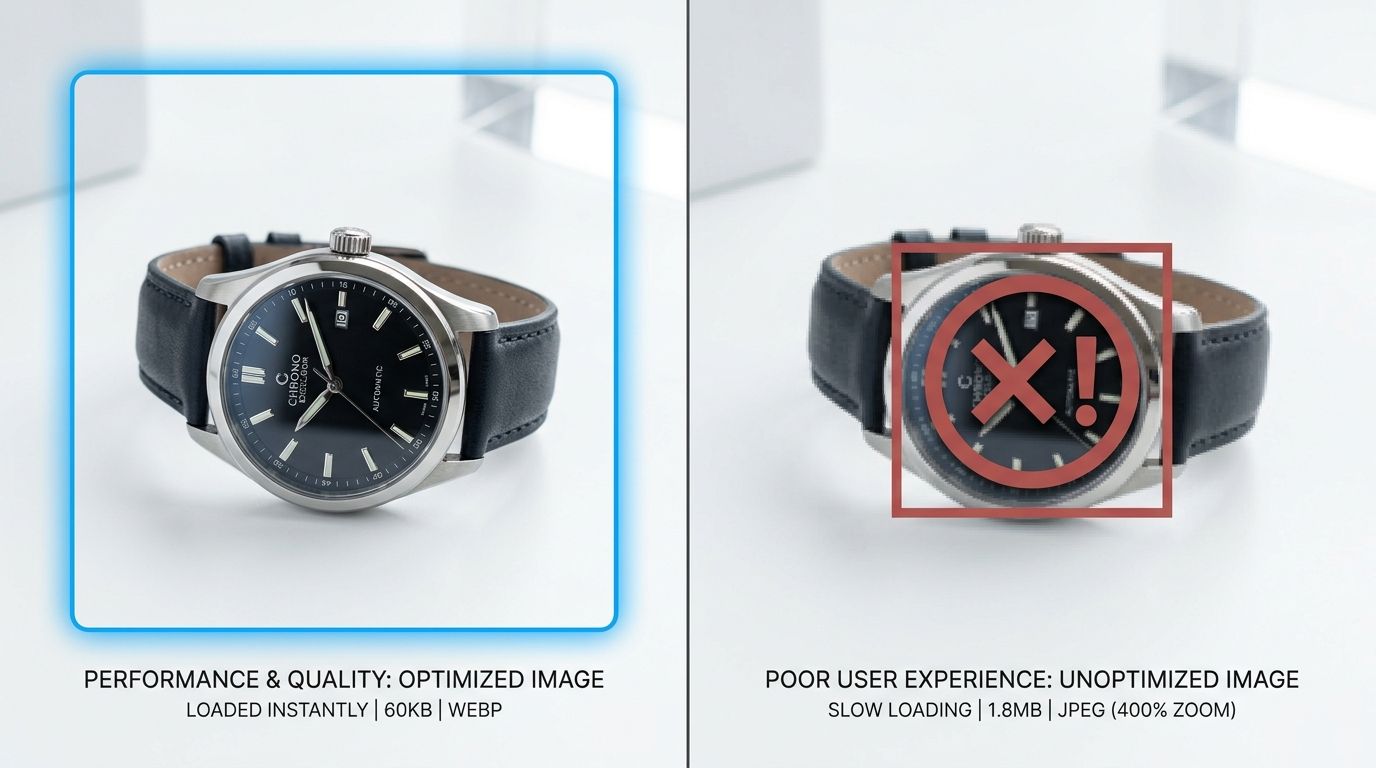
A 1000 by 1000 pixel image straight out of a modern camera can easily exceed five megabytes. Putting five of those in a product gallery guarantees a slow experience for mobile shoppers on cellular networks. You should aim to keep every product image under 150KB. Use an image optimization plugin like ShortPixel or Smush to automatically compress files upon upload. They strip out unnecessary camera metadata and apply lossless compression, reducing the file footprint by up to seventy percent without visibly degrading the image.
Selecting the Right File Format
JPEG used to be the gold standard for ecommerce. That is no longer true. Modern browsers all support next-generation formats that handle compression far better. Understanding the best image format for ecommerce is crucial for WordPress site speed.
WebP is the absolute best choice for WooCommerce in 2026. A WebP file is typically thirty percent smaller than a JPEG of the exact same visual quality. WordPress natively supports WebP uploads, meaning you can export directly from your photo editor in this format and drop it straight into your media library.
Lazy Loading the WooCommerce Product Gallery
As your listings become more competitive, you need more visual proof to secure the sale. Researching how many product images convert often leads brands to upload six or seven photos per product. Loading all seven instantly will paralyze your page speed. Ensure your theme or optimization plugin has lazy loading enabled. This defers the loading of the gallery images until the customer actually clicks or swipes to view them.
Standardizing Your Visual Output
Managing image sizes becomes a massive operational bottleneck as your catalog scales. When you launch fifty new SKUs, manually cropping, resizing, and compressing every raw file drains hours of time.
This is where modern workflows shift away from manual Photoshop labor. Tools like CherryShot AI generate campaign-ready photos in minutes. You pick a visual mode, upload a basic product shot, and the system outputs perfectly scaled imagery ready for your WooCommerce store. You bypass the tedious cropping entirely and keep your focus on launching the actual product.
Standardize your product photography workflow
Audit your existing product pages to ensure consistent sizing and clear detail shots. Apply a standardized cropping workflow to your upcoming SKU launches so your catalog grid remains clean and professional. You can automate this entire process using our AI tools to maintain perfectly consistent dimensions for every image you publish.
Try CherryShot AIKey Takeaways
- Set your main WooCommerce product images to 1000 by 1000 pixels for optimal zoom clarity.
- Force a strict 1:1 aspect ratio in the WordPress customizer to prevent broken catalog grid layouts.
- Run a thumbnail regeneration plugin any time you alter your image dimension settings.
- Compress all files to under 150KB and utilize the WebP format to protect your mobile page load speeds.
Frequently Asked Questions
What image size should WooCommerce products be?
The ideal WooCommerce product image size is 1000 by 1000 pixels. This dimension provides enough resolution to trigger the native magnification zoom on product pages while keeping file sizes small enough to maintain fast loading speeds. A square 1:1 aspect ratio ensures your catalog grid remains aligned across all devices and screen sizes.
How do I change image sizes in WooCommerce?
Navigate to Appearance, click Customize, and select WooCommerce to open the Product Images menu. Define your main image width, thumbnail dimensions, and select the desired cropping behavior from this central panel. Choosing a 1:1 ratio forces every product display into a uniform square which keeps your catalog layout consistent.
Do I need to regenerate thumbnails in WooCommerce?
Yes, you must run this process whenever you alter your image settings. WordPress does not retroactively resize images already present in your database after you modify your global configuration rules. Use a dedicated regeneration plugin to clear out the old file versions and generate new assets that match your updated store display requirements.
What is the best image format for WooCommerce?
WebP is the best image format for WooCommerce due to its superior compression ratios. It maintains high visual fidelity while significantly reducing the actual file size compared to older standards like JPEG or PNG. Modern WordPress versions support this format natively, allowing you to upload files directly without needing extra conversion tools.
How do I optimize product images in WooCommerce?
Export all your files at a fixed 1000 by 1000 pixel dimension to ensure consistency. Convert these assets into the WebP format to keep individual file sizes below 150KB for fast delivery. Install a dedicated compression plugin to automatically strip metadata from every image during the upload process to prevent unnecessary database bloat.
Getting your WooCommerce image sizes right is a foundational step for store performance. Stop uploading raw files directly from the camera and expecting the platform to sort it out. Control your dimensions, compress your files, and keep your layout rigidly consistent. When your grid looks professional and loads instantly, the customer focuses entirely on what they want to buy.